
MOBILE WALLET WORKFLOW · TON TO USDT ON TRON
When the route is available, a TON-to-USDT-TRC20 swap sends native Toncoin from the TON network and delivers USDT on TRON. Prepare a USDT receiving address on TRON, check that the route has a live quote, then follow the order’s TON deposit instructions. Do not send USDT held on TON to an order requesting native TON.
At our October 1, 2026 publication check, AceChange did not return a TON-to-USDT-TRC20 quote. We also checked FixedFloat directly: native Toncoin was not listed in its currency selectors, although Tether (TON) was listed. Those are different assets. Availability can change; this observation does not establish when native TON will return. Use the guide to prepare, then proceed only when the live form provides a valid quote and order instructions.
Tonkeeper has become Keeper. Its official site now describes a multichain wallet, so older advice saying that every version of the app is TON-only is no longer a reliable starting point. Check the networks available in your own wallet and account. See the official explanation of the name change.
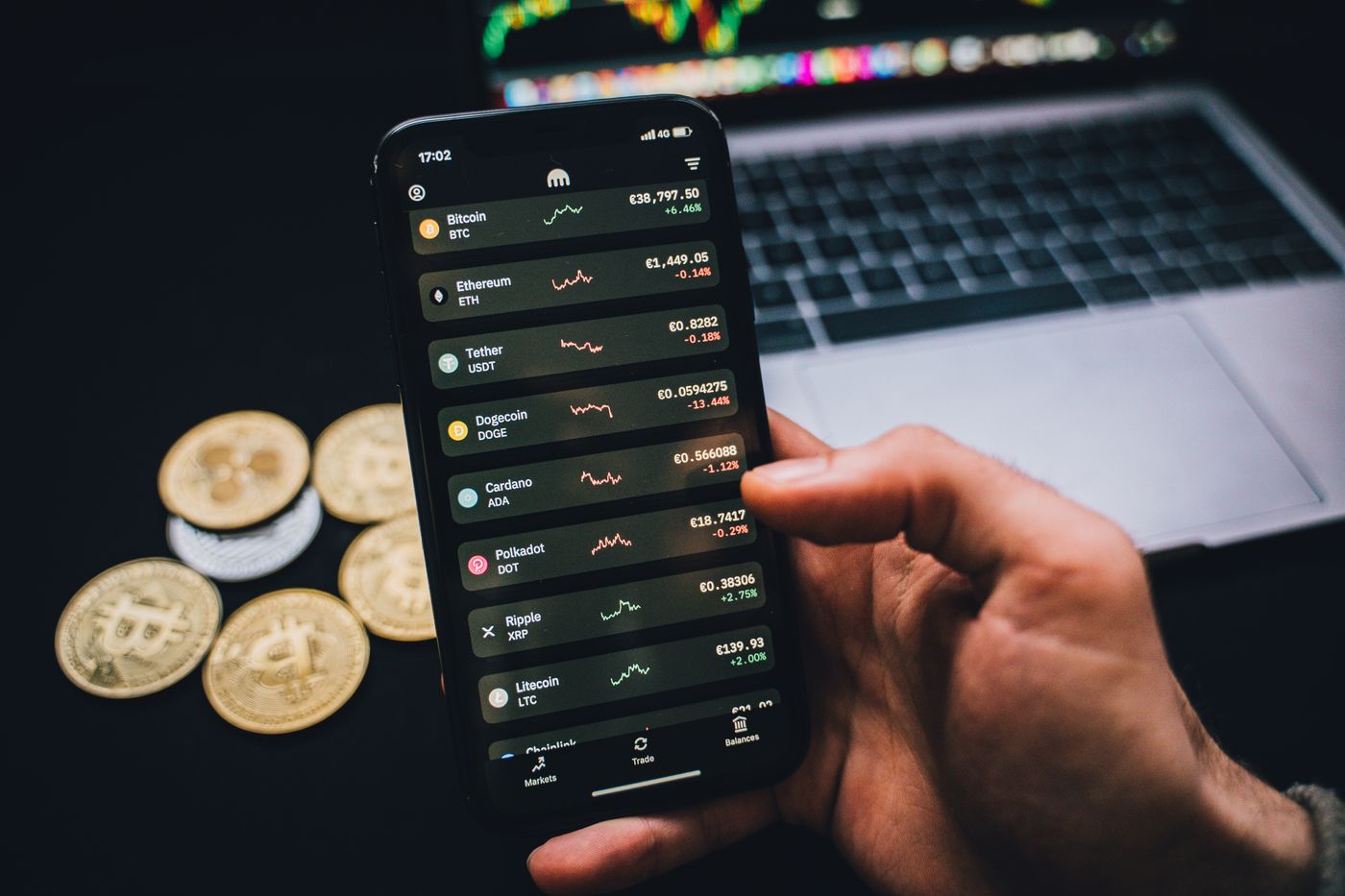
Checkpoint 1: which balance is on your phone?
Open your wallet and tap the asset you intend to exchange. Read the asset name and network together. A TON balance, a USDT balance on TON and a USDT balance on TRON require different sending instructions, even if all three appear inside the same app.
This guide covers native Toncoin as the input. If your balance is USDT on TON, stop before using a TON deposit address generated for native Toncoin. The same blockchain can carry several assets; a supported network does not make every token on it an accepted deposit.
| Balance in your wallet | What you own | Does this workflow match? |
|---|---|---|
| TON on TON | Native Toncoin | Yes, if a TON-to-USDT-TRC20 quote is currently available |
| USDT on TON | Tether token on TON | No; find a route explicitly accepting that token and network |
| USDT on TRON | The target network version of USDT | You may only need a normal transfer, not this swap |
Tether lists TON and TRON as different supported protocols. The similar names do not make their addresses or tokens interchangeable. Use the official Tether protocol directory to identify the token, and use your wallet’s Receive screen to obtain your personal address. Those are different tasks.
Check whether the balance is available to send. A portfolio total can include assets in another account or assets committed to another activity. Do not create a timed order until you can open a normal send preview for the TON you plan to use.
If you recently changed wallet versions, make sure you are looking at the correct account. The Keeper rebranding documentation explains that existing TON wallets and new multichain wallets can have different derivation paths. A name change alone does not mean every old account has become a multichain account. Follow the wallet’s official instructions rather than importing recovery words into a website suggested by a stranger.
Checkpoint 2: prepare the USDT-on-TRON destination
Decide where the USDT needs to arrive. It might be a supported account in your current wallet app, a separate self-custody wallet, or an exchange deposit. The decision should come from your intended use, not from whichever receiving address is easiest to find.
Open the destination’s USDT receiving screen and select TRON or TRC-20. Read any warnings on that screen. Copy the address directly from it and retain the network name beside the address in your own notes. Avoid using an address copied from transaction history or a token information page.
If the receiving platform supports several networks, do not assume its default is TRON. Some interfaces remember a previous selection. Check the label every time you open the deposit screen, especially when you have been working with USDT on TON in the same session.
For an exchange deposit, check the minimum amount that will be credited and whether deposits are enabled. For your own wallet, confirm that the account can display USDT on TRON. If the asset needs to be added to the wallet’s display, use official token information rather than an unsolicited link.
Plan the next transfer as well
If you need to send the received USDT onward immediately, inspect the receiving wallet’s fee arrangements before starting. TRON uses resources for transactions and smart-contract execution, and may burn TRX when those resources are insufficient. Its official resource model explains the mechanism. Wallet features can provide different ways to cover those costs; check what your actual account offers.
Do not confuse paying for a later outgoing transfer with receiving the swap payout. A normal incoming USDT transfer does not require you to approve a wallet connection or reveal a seed phrase. An unexpected message asking for an “unlock payment” is not part of these preparation steps.
If you are paying someone else, get their agreement on the exact network and acceptable amount. A recipient saying “send Tether” has not yet supplied complete delivery instructions. Ask them to confirm TRC-20 explicitly before choosing that output.
Checkpoint 3: stay in the browser until the route is clear
Open the AceChange swap form. Select native TON as the sending asset and Tether on TRON as the receiving asset. In the interface reviewed for this guide, the TRON version is labelled Tether (TRC20) with the code USDTTRC.
A currency appearing in the selector is not enough to confirm that the provider can execute that route at that moment. Enter the intended amount and wait for a current receive amount. Read errors, minimums and availability notices. If there is no valid quote, do not proceed using a price from a search result or an old screenshot.
The availability notice above records what we observed when this guide was published; it is not a live status feed. Check the form at the time you intend to swap. You can prepare the correct information in advance, but if the route is unavailable, wait before the deposit stage. Contact official support if the quote remains unavailable.
When a valid quote is available, compare the expected USDT output with your receiving requirements. If the destination is a platform with a minimum deposit, the delivered amount needs to meet that requirement independently of the swap’s input minimum.
Review fixed or floating rate conditions rather than relying on the label alone. The execution provider describes its order conditions in the FixedFloat FAQ. A wallet transfer made too late or for a different amount can require attention even when you selected a fixed rate.
Paste the USDT-on-TRON address you prepared earlier. Compare it carefully with the receiving screen. Read the service terms and eligibility declarations before creating an order. Save the order ID and tracking link before moving to your wallet app.
A simple two-screen habit
On a phone, switch between the order screen and wallet deliberately. Before leaving the browser, note the requested deposit asset, amount and any comment instruction. On returning, check that you are still looking at the same order. Several similar browser tabs can make it easy to use one order’s address with another order’s amount.
If you cannot comfortably compare details on one device, use a second trusted screen for viewing the order while keeping wallet authorization on your usual device. This is an optional usability choice, not a requirement to connect the wallet or disclose its secrets.
Checkpoint 4: review the TON send screen before signing
Keeper’s official sending instructions describe selecting Send, choosing the network and token, entering the recipient and any required comment, then reviewing the amount and network fee. Button placement may differ between versions. Use the app’s current labels rather than trying to imitate an outdated screenshot.
For this workflow, the recipient in the TON send screen is the swap order’s TON deposit address. It is not the USDT receiving address. The exchange uses the first transfer to fund your order and a separate payout to deliver the output asset.
Copy the deposit address from the active order or scan its QR code. Then inspect what the wallet filled in. A QR code may supply multiple fields, and a copied address can be replaced by clipboard malware. Compare the displayed destination with the order before authorizing the transfer.
If the order gives a comment or memo, include that exact value in the appropriate wallet field. If it does not, do not invent a comment based on a general guide. If the wallet and order instructions disagree, pause and ask support while the order is still unfunded.
Review the total cost shown by the wallet. Leave sufficient funds or a supported fee arrangement to submit the transaction. A “send all” control can produce a different deposit amount than the order requests after fees are considered. Use the final transaction preview to verify what will actually be sent.
Authorize only when the asset, network, address, amount and required comment all agree. If the wallet reports an error, check its transaction history before trying again. An unclear browser status alone is not a reason to send a second deposit.
Checkpoint 5: return to the same order
After the wallet submits the transaction, record its transaction ID or explorer link. Return to the saved order rather than opening a fresh swap form. The existing order is the one associated with the deposit you just sent.
Separate three events: the TON transaction being submitted, the exchange recognizing the deposit, and the USDT payout reaching the destination. A delay between these events does not by itself identify a fault. Check which stage has evidence before deciding whom to contact.
If the order shows a payout transaction, inspect it on the receiving network. In this workflow, that network is TRON. The TON deposit and TRON payout have separate transaction records. Keep both with the order ID if you need support.
For a personal wallet, open the account and USDT network you selected at the start. A balance on TON is not where a TRC-20 payout will appear. Refresh the correct asset view and check its transaction history.
For an exchange deposit, compare the payout with the current deposit rules. The receiving service may need confirmations or additional processing before updating its internal balance. If the blockchain transfer has reached the supplied address but the account is not credited, the receiving service is the right place to investigate that credit step.
Do not send another transfer to “activate” an already submitted order unless official support has explained a specific, verifiable requirement for your case. Be particularly cautious of unsolicited private messages after you mention a delayed swap in a public chat.
When a step is stuck, use this short decision table
| Situation | Useful next check | What will not fix it |
|---|---|---|
| No valid quote | Current route availability and the entered amount | Sending to an old order address |
| Wallet reports insufficient funds | Available TON and the final fee estimate | Assuming the future USDT payout pays the current TON fee |
| TON submitted, order still waiting | Transaction status, deposit address, amount and required comment | Sending the deposit repeatedly |
| USDT payout exists, wallet balance absent | Correct TRON account and genuine USDT token view | Switching to the TON balance screen |
| Exchange account not credited | Receiving platform’s deposit minimum and credit conditions | Assuming a second swap will repair the first deposit |
If a required comment was omitted, gather the order ID and transaction details and contact support. Do not promise yourself that recovery will be immediate or possible in every case. The service needs to identify the transfer and determine how its deposit system handled it.
If you sent a different asset from the one the order requested, describe that mismatch clearly. “I sent USDT on TON to an order for native TON” is more useful than “my TON payment failed.” Include the actual asset and network from the wallet’s transaction record.
If the app shows a transaction but you are unsure whether it completed, use the wallet’s own transaction details and official help. Do not install a remote-control application or share your screen with a stranger who offers to troubleshoot a recovery phrase. Support for a swap does not need control of your whole wallet.
The pending-swap guide explains how to distinguish an unfunded order, a deposit awaiting recognition and a payout waiting to appear. Use it alongside the actual order status; an estimated duration in an article cannot tell you what happened to a specific transaction.
Questions about Tonkeeper, Keeper and TRC-20
Can I send native TON straight to a USDT TRC-20 address?
No. This workflow requires an exchange between two assets on different networks. The TON deposit goes to the order’s TON address. The service then sends USDT to your TRON receiving address. Sending directly to the final recipient is not a substitute for that exchange.
Is USDT on TON already TRC-20?
No. TON and TRON are distinct networks. Check the token’s network label in your wallet. If you already have USDT on TON, you need a route that explicitly accepts that input; do not use an order whose sending asset is native Toncoin.
Do I have to install a different receiving wallet?
Not necessarily. Current Keeper products advertise multiple networks, but availability can differ by platform and account type. Inspect the actual USDT-on-TRON receive screen in your wallet. If you cannot obtain one, use another supported destination you control or verify an exchange deposit before proceeding.
Can I follow an old Tonkeeper screenshot exactly?
Use it only as background context. Wallet names, navigation and supported networks can change. This guide uses checkpoints so you can verify the right asset, network and destination even when a button has moved. Follow the current official sending instructions for your app version.
Should I use the wallet’s own swap feature instead?
You can inspect a route offered inside your wallet, but evaluate it as a separate service with its own provider, quote and conditions. Do not assume an in-app swap and an AceChange order share the same deposit address or order tracking. Choose one workflow and follow its instructions consistently.
What should I keep after the swap?
Save the order ID, source asset and network, destination network, sending transaction ID and payout transaction ID. Keep private wallet backups separate from this record. If you need assistance, share the minimum order details through the service’s official support channel.
Proceed only when the live route is available
Prepare the native TON balance, the USDT-on-TRON destination and the sending fee first. Then check the current swap form. If TON has no valid quote when you check, pause and ask support; the preparation steps remain useful, but they do not make an unavailable route executable.
Editorial note: This article is based on official Keeper, Tether and TRON documentation plus an original mobile checklist. No funded swap or hands-on test of a specific Keeper app build is claimed. The currency selectors were checked on AceChange and FixedFloat on October 1, 2026. A listed token or network is not proof that a particular route can execute. Recheck the live quote before creating an order. Prepared for AceChange, | | Company S.R.L., Avenida 2, entre calles 38 y 40, Oficentro ASG, Office 19, San José 10103.
